
The Complete Guide to .htaccess: What It Is, Where It Lives, and How to Read It
One small, easy-to-break text file controls how your entire site responds to every request — redirects, error pages, security rules, caching, and more. This is the file behind more “mystery” traffic drops and 404 spikes than almost anything else on a server. Here’s everything it does and how to actually read it.
1. What .htaccess Actually Is
“.htaccess” stands for “hypertext access.” It’s a plain-text configuration file that lives inside a directory on an Apache web server (and on servers like LiteSpeed that emulate Apache behavior) and controls how that directory — and everything inside it — behaves.
Think of it as a set of local override instructions. The web server has a global configuration file (usually httpd.conf) that sets the rules for the entire server. .htaccess lets individual directories override those rules without anyone needing server-level (root) access — which is exactly why shared hosting environments rely on it so heavily. Your hosting provider controls the main server config; you control .htaccess.
| WHY IT MATTERS FOR SEO Nearly every URL-level behavior that affects crawlability — redirects, canonical enforcement, custom error pages, blocking bad bots, forcing HTTPS, controlling trailing slashes — is commonly implemented through .htaccess on Apache-based hosting. It’s also, correspondingly, the single most common source of a site-wide 404 spike or sudden traffic collapse when a rule breaks. |
2. Where It Lives — and Why You Can’t Find It
The main .htaccess file for a WordPress or general PHP site sits in the site’s root directory — the same folder as wp-config.php, wp-content, and wp-admin (or index.php/index.html for non-WordPress sites).
It’s a hidden file by default because its filename starts with a dot, which is a Unix convention for hidden files. Most file managers and FTP clients hide dotfiles unless you explicitly tell them to show hidden files.
How to reveal it
- FTP/SFTP clients (FileZilla, Cyberduck): Server menu → “Force showing hidden files”
- cPanel File Manager: Settings (top right) → check “Show Hidden Files (dotfiles)”
- SSH: ls -la instead of ls — the -a flag shows hidden files
Important: .htaccess files can also exist in subdirectories, not just the root. A rule set inside /wp-content/uploads/.htaccess only applies to that folder and anything below it, and it’s evaluated in addition to (and after) the root file. This is a common source of confusion when a site “has no .htaccess problem” at the root but a subdirectory is misbehaving.
3. How to Access and Edit It Safely
There are four common ways in, roughly ordered from most to least commonly used:
- cPanel / hosting control panel File Manager — the simplest option for most site owners. Navigate to the root directory, enable hidden files, right-click .htaccess → Edit.
- FTP/SFTP client (FileZilla, Cyberduck, Transmit) — connect with your hosting credentials, show hidden files, download a local copy before editing, then re-upload.
- SSH terminal access — for anyone comfortable with command-line editors (nano, vim). Fastest option, but no undo button if you fat-finger a save.
- WordPress plugins (e.g., Yoast, RankMath, or dedicated .htaccess editor plugins) — edit from wp-admin without touching FTP. Convenient, but plugin-based editors have caused real outages when a plugin bug or conflict writes malformed rules — treat this option with the same caution as direct editing, not less.
| ALWAYS BACKUP FIRST Before any edit, copy the existing .htaccess content somewhere safe — a text file on your desktop is enough. A single misplaced character can produce a site-wide 500 Internal Server Error. Having the last-known-good version means a 30-second recovery instead of a support ticket. |
4. What .htaccess Actually Does
At a functional level, .htaccess is used for six main categories of control:
- URL rewriting and redirects — the most common SEO use: 301 redirects, forcing HTTPS, removing/adding trailing slashes, enforcing www vs. non-www.
- Custom error pages — pointing 404, 403, or 500 errors to a branded page instead of the server default.
- Access control and security — blocking specific IPs, bad bots, or entire directories from being accessed directly.
- Performance and caching — setting browser cache expiry headers and enabling compression.
- MIME types and file handling — telling the server how to serve specific file extensions.
- Directory browsing control — preventing the server from listing folder contents when there’s no index file.
5. Reading the Syntax — The Building Blocks
The syntax looks intimidating mostly because of density, not complexity. Once you know the handful of recurring patterns, most .htaccess files become readable line by line.
Comments
Any line starting with # is a comment — ignored by the server, used for human notes.
| # Force HTTPS on all requests |
Modules
Many directives require a specific Apache module to be enabled — most commonly mod_rewrite for URL rewriting. Rules are often wrapped in a conditional check so the file doesn’t break on a server where that module is missing:
| <IfModule mod_rewrite.c> RewriteEngine On </IfModule> |
Directives
A directive is a single instruction — a keyword followed by its parameters, one per line. Order matters: Apache reads .htaccess top to bottom, and rewrite rules are evaluated sequentially, so a rule higher in the file can prevent a later rule from ever being reached.
RewriteCond and RewriteRule — the core pairing
These two directives do almost all the heavy lifting for redirects and URL rewriting, and they always work as a pair (or a rule alone, if no condition is needed):
| RewriteCond %{HTTPS} off RewriteRule ^(.*)$ https://%{HTTP_HOST}%{REQUEST_URI} [L,R=301] |
Read this line by line:
- RewriteCond %{HTTPS} off — a condition: “only apply the next rule if the connection is NOT already HTTPS.”
- RewriteRule ^(.*)$ … — the rule itself. ^(.*)$ is a regular expression matching any URL path.
- https://%{HTTP_HOST}%{REQUEST_URI} — the destination: rebuild the same URL, but force it onto https://.
- [L,R=301] — flags: L means “last rule, stop processing further rules if this one matched”; R=301 means “send a 301 permanent redirect” (without it, the rewrite happens silently server-side with no redirect visible to the browser or to Google).
6. The Core Directives You’ll Actually Use
Most real-world .htaccess files are built from a fairly small, recurring set of directives:
| Directive | What it does |
| RewriteEngine On | Turns on the URL rewriting engine. Every rewrite-based file needs this line before any RewriteRule will function. |
| RewriteBase / | Sets the base URL path that relative rewrite rules are calculated from — important in subdirectory installs. |
| RewriteCond | A condition that must be true for the following RewriteRule to apply. Multiple conditions can stack above one rule. |
| RewriteRule | The actual pattern-match-and-redirect/rewrite instruction. Core of almost every redirect. |
| Redirect / Redirect 301 | A simpler, non-regex way to redirect a single specific URL to another, without needing mod_rewrite. |
| ErrorDocument 404 /404.html | Defines a custom page to serve when the server would otherwise return a given HTTP error code. |
| Options -Indexes | Disables directory listing — stops the server from showing a raw file list when no index file exists in a folder. |
| Require all denied | (Apache 2.4+) Blocks all access to the directory or file it applies to. Older syntax: Deny from all. |
| ExpiresByType | Sets browser cache expiry for specific file types (images, CSS, JS) — a common performance directive. |
| Header set | Adds a custom HTTP response header — used for security headers, CORS, or cache-control. |
7. Reading a Real Example: WordPress’s Default Block
Almost every WordPress install ships with this block, generated automatically the first time permalinks are saved. It’s worth understanding fully, since it’s the block most often accidentally corrupted:
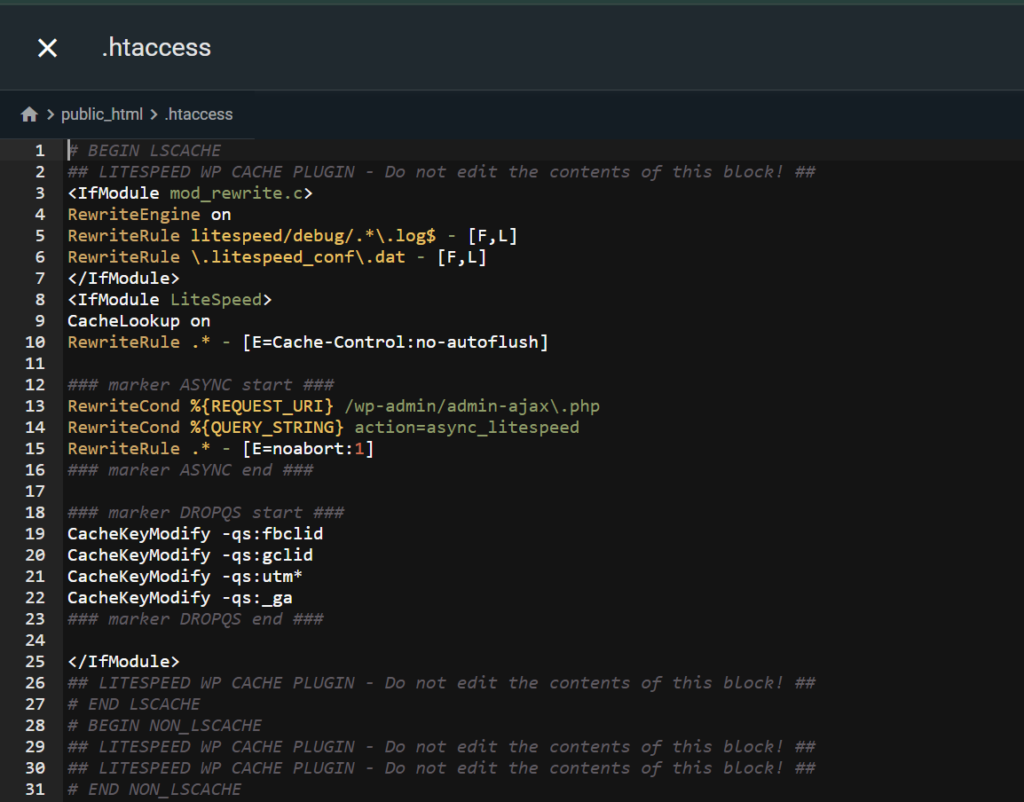
Walking through it:
- # BEGIN WordPress / # END WordPress — markers WordPress uses to identify “its” block, so it can safely regenerate just this section without touching anything you’ve added around it.
- RewriteBase / — treats the site root as the base for the relative rules below.
- RewriteRule ^index\.php$ – [L] — if the request is already for index.php, stop here and do nothing further.
- RewriteCond %{REQUEST_FILENAME} !-f and !-d — “only continue if the requested path is NOT an existing real file and NOT an existing real directory.”
- RewriteRule . /index.php [L] — for anything else, send the request to index.php, which is what lets WordPress’s PHP router figure out what page to actually serve based on the URL.
This last block is exactly why a corrupted or missing WordPress rewrite block is one of the most common causes of a site-wide 404 spike: without it, any URL that isn’t a literal existing file on disk — which, on WordPress, is almost every page — has nothing telling the server to hand it off to PHP for routing, so the server returns a raw 404 instead.
8. Common Mistakes That Break Sites
- A single syntax error (missing bracket, stray character) can bring down the entire site with a 500 Internal Server Error — not just the broken rule.
- Rule order matters. A broad rule placed above a specific one can catch requests before they ever reach the intended rule.
- Missing RewriteBase in a subdirectory install causes relative rewrite rules to resolve against the wrong path.
- Duplicate or conflicting WordPress blocks — from a migration, a restored backup, or a plugin re-adding its own block — can cause redirect loops.
- A subdirectory .htaccess unexpectedly overriding root rules — easy to forget these exist and evaluate independently.
- Browser or CDN caching a bad redirect — a 301 set during a misconfiguration can get cached client-side and persist even after the file is fixed, until the cache is cleared.
9. How This Connects to Diagnosing a Traffic Drop
If you’ve read our diagnostic guide on sudden traffic drops and mass 404s, .htaccess corruption is exactly the kind of root cause that produces that exact symptom pattern: a same-day, site-wide vertical drop with no Manual Action and no Security Issue. A broken or missing WordPress rewrite block, a bad plugin-generated rule, or a corrupted upload during a migration all live in this one file — which is precisely why it’s one of the first things worth checking, and why fixing the single root cause can restore hundreds or thousands of URLs to 200 in one change, without touching each page individually.
10. A Safe Editing Checklist
- Back up the current file before making any change — copy the full contents somewhere outside the server.
- Make one change at a time where possible, rather than batching multiple edits into a single save.
- Comment out old rules with # instead of deleting them outright, so reverting is a one-line change.
- Test in a staging environment first if one is available, especially for rewrite-heavy changes.
- Load the site immediately after saving — a 500 error will be immediate and obvious.
- Check the server error log if something breaks — Apache logs the specific line and reason for a syntax failure.
- Clear any page or CDN cache after fixing a redirect issue, since bad redirects can get cached client-side.
11. Frequently Asked Questions
Is .htaccess only used by WordPress?
No — it’s an Apache server feature independent of any CMS. WordPress relies on it heavily for permalink routing, but any site on Apache or Apache-compatible hosting (like LiteSpeed) can use .htaccess, including static HTML sites, PHP applications, and other CMSs.
Does Nginx use .htaccess?
No. Nginx doesn’t read .htaccess files at all — equivalent rules must be written directly into the main server block configuration. If a site is migrated from Apache to Nginx hosting, all .htaccess rules need to be manually translated into Nginx syntax, which is a common migration failure point.
Why did my site go down right after I edited .htaccess?
Almost always a syntax error — a missing bracket, an unclosed IfModule tag, or an invalid regular expression. Restore the backed-up version immediately to bring the site back, then re-introduce the change more carefully, one line at a time.
Can I just delete .htaccess if I’m not sure what it does?
Not safely, on a live WordPress site. Deleting it removes the rewrite block that routes non-file URLs to index.php, which will break permalinks site-wide and produce widespread 404s. If you suspect the file is corrupted, replace its contents with a fresh, correctly generated version instead of removing it.
Suspect a misconfiguration is costing you traffic?
Server-level issues like a corrupted .htaccess file are exactly the kind of root cause our technical SEO audits are built to catch fast — before a small config error turns into weeks of lost indexing.